
Suppliers Onboarding
DaVita uses the Coupa Supplier Portal (CSP) to manage our suppliers’ information. This information is pertinent to our business relationship and the completion of the onboarding process is required to properly conduct business with DaVita. For assistance, please see the information below.
Locating DaVita’s Onboarding Form
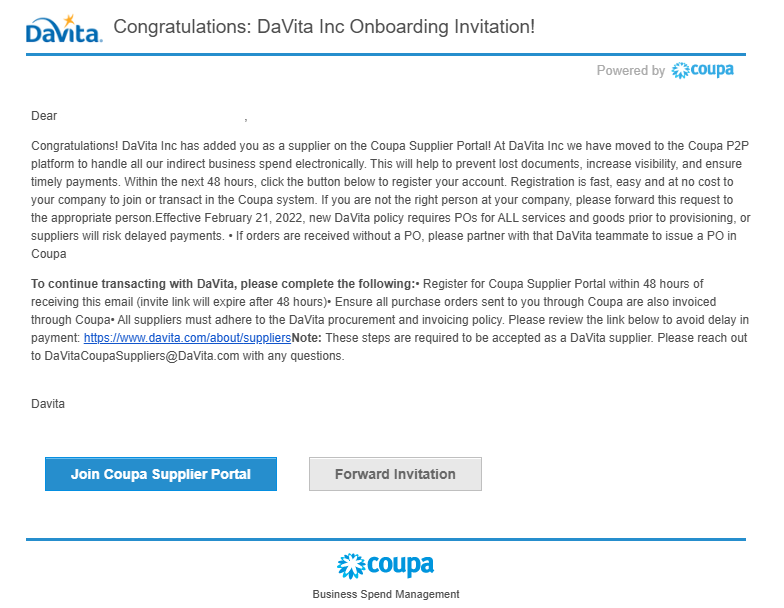
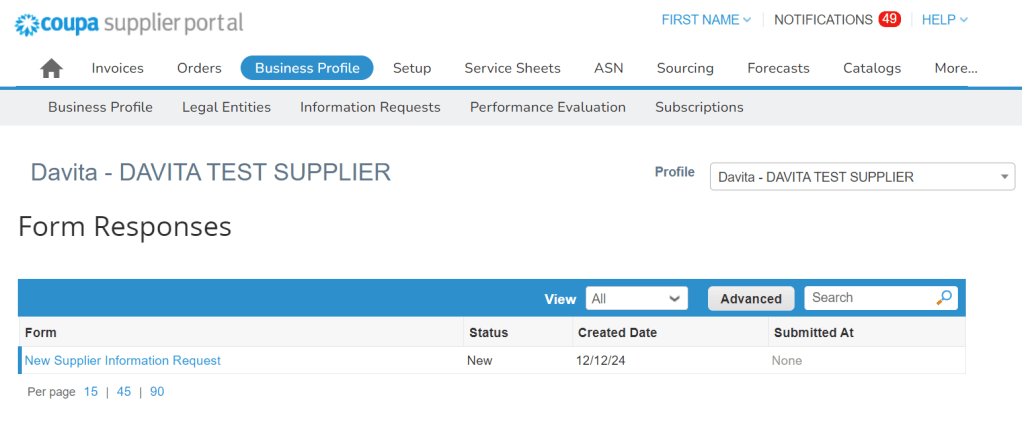
After successfully creating and logging into your Coupa Supplier Portal account, please navigate to the “Business Profile” tab. After clicking “Business Profile,” click the sub-tab titled “Information Requests.” Make sure DaVita is selected in the “Customer” drop-down located on the right-hand side of the page. DaVita’s Onboarding Form is called the "New Supplier Information Request". You will find this form ready for your action on this page with status "New".
If you cannot locate your onboarding form, please contact DaVitaCoupaSuppliers@davita.com.
General Information
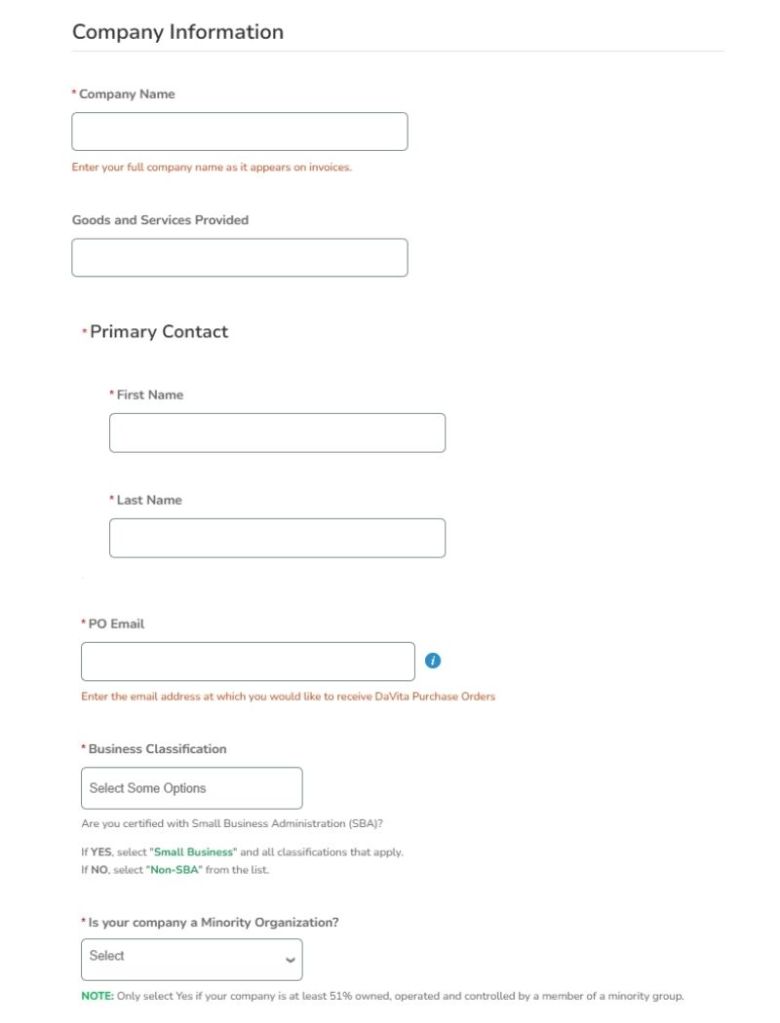
Supplier Name: To better assist DaVita with invoice processing, please enter your company name the way it appears on your invoices.
Goods/Services Provided: Enter a brief description of the goods/services your company provides to DaVita.
Primary Contact: Enter your company’s preferred primary contact for DaVita.
PO Email: Enter the email address where you would like to receive Coupa purchase orders and their notifications.
Business Classification: If your business is registered with the Small Business Administration (SBA), select all that apply. If you are not registered, select “Non-SBA.”
If your company is a minority organization: Please only select “Yes” if your company is at least 51% owned, operated and controlled by a member of a minority group.
- Minority Type: If you answered “Yes” to the question above, please specify the minority type.
Tax Information
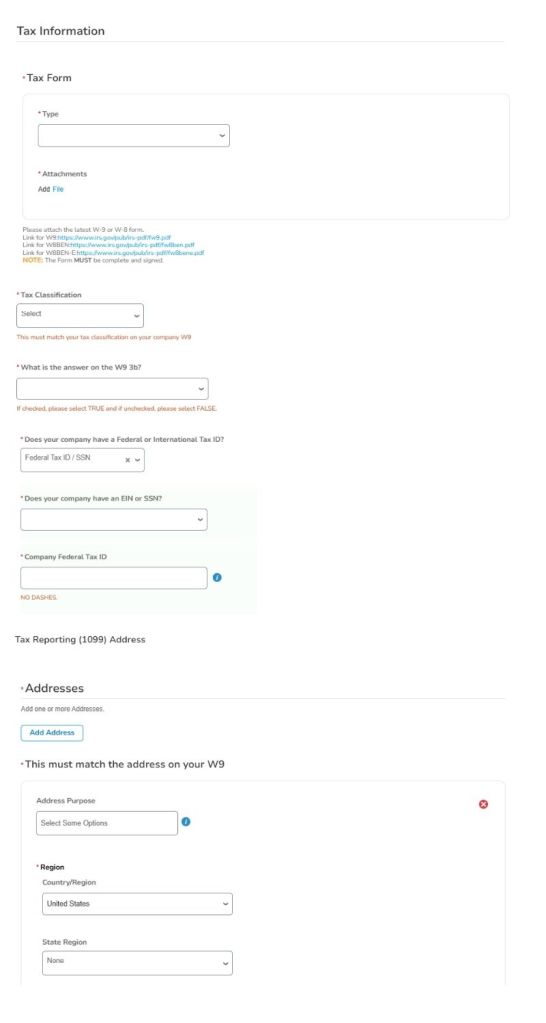
Tax Form: Select “W9” and attach a completed copy of your W9 form.
- Note: To remain in compliance with IRS regulations, DaVita requires a signed and dated 2024 W9. The new W9 form can be found here.
- If your company has a W8/International Tax ID, please stop this process and email DaVitaCoupaSuppliers@davita.com for further information.
Tax Classification: Select the option which aligns with what is presented on your W9.
What is the answer on the W9 3b?: If the box in field 3b on your W9 is checked, please select TRUE. If unchecked, please select FALSE.
Tax Address: For 1099 Reporting, DaVita requires an address on file for tax purposes. This address must match the address listed on the W9 provided on this request. Only the following fields are required for this address section:
- Country/Region
- State
- Street Address
- City
- Postal Code
Does your company have a Federal or International Tax ID?: Select “Federal Tax ID/SSN”.
If your company has an International Tax ID, please contact DaVitaCoupaSuppliers@davita.com for further instruction.
If your company has an EIN or SSN: Select the option which aligns with what is presented on your W9.
Company Federal Tax ID: Enter your Tax ID with no dashes, exactly as it appears on your W9.
Remit-To Information
To provide DaVita with your company’s Remit-To address and associated payment information, click the “Add Remit-To” button. Note: If your company has multiple Remit-To (Payment) addresses, please add them all in this section. If DaVita receives an invoice at a future date which references a Remit-To Address we do not have on file in our records, you will have to complete this process again.
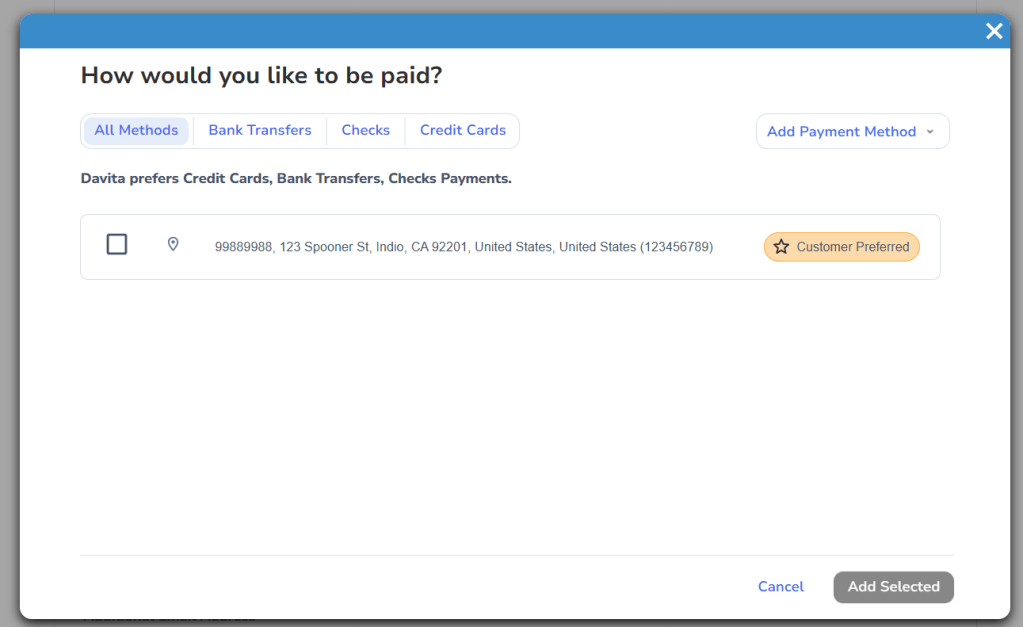
In the pop-up window, if the correct Remit-To Address is available, click the check box next to it and click "Add Selected" to add the address to this request. Once the address populates onto the request, complete the additional fields. If the correct Remit-To Address is not available, click "Add Payment Method."
Payment Address: This must match the payment/remit-to address on your invoice(s).
- Street Address: Enter the street address for your company’s payment/remit-to address. (if possible, please withhold any special characters)
- City: Enter the City where your company’s payment/remit-to address is located.
- Country/Region: Enter “United States”. For all other countries/regions, please stop this process and email DaVitaCoupaSuppliers@davita.com for further information.
- State Region: Enter the State where your company’s payment/remit-to address is located.
- Postal Code: Enter the Postal Code where your company’s payment/remit-to address is located.
Payment Information:
Payment Method: Choose 1 of the following electronic payment methods:
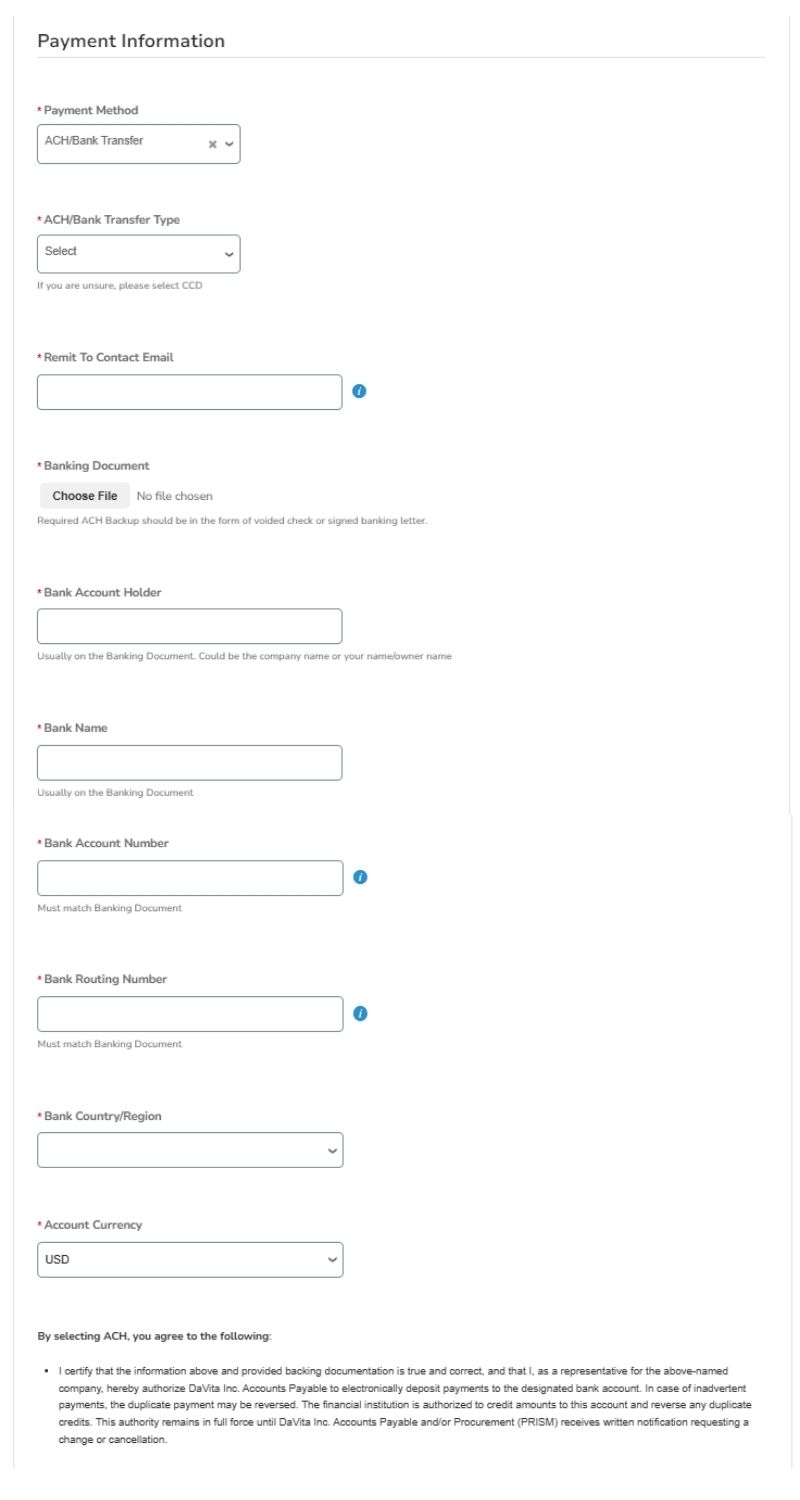
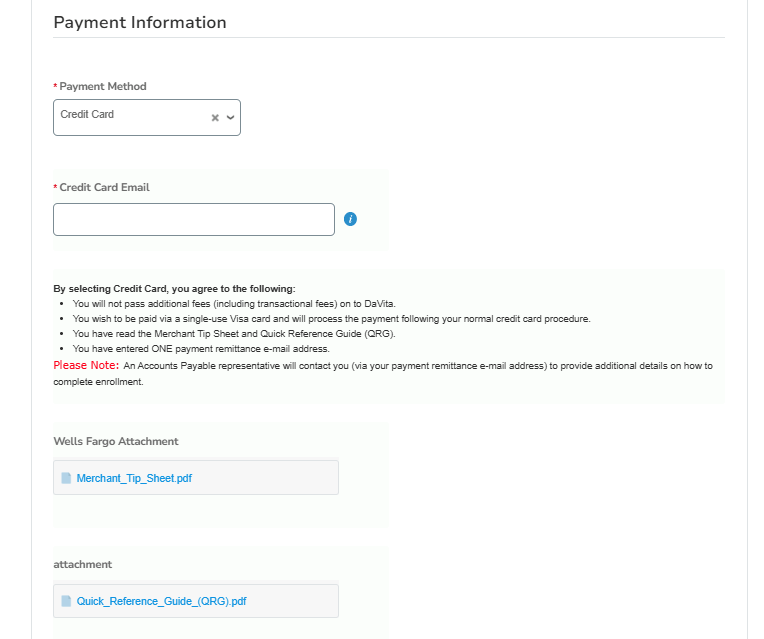
Contact Information:
- Work Phone: Enter the phone number specific to this address in the following format: XXX-XXX-XXXX
- Additional Email Address: Please provide an additional contact email specific to this address (if applicable).
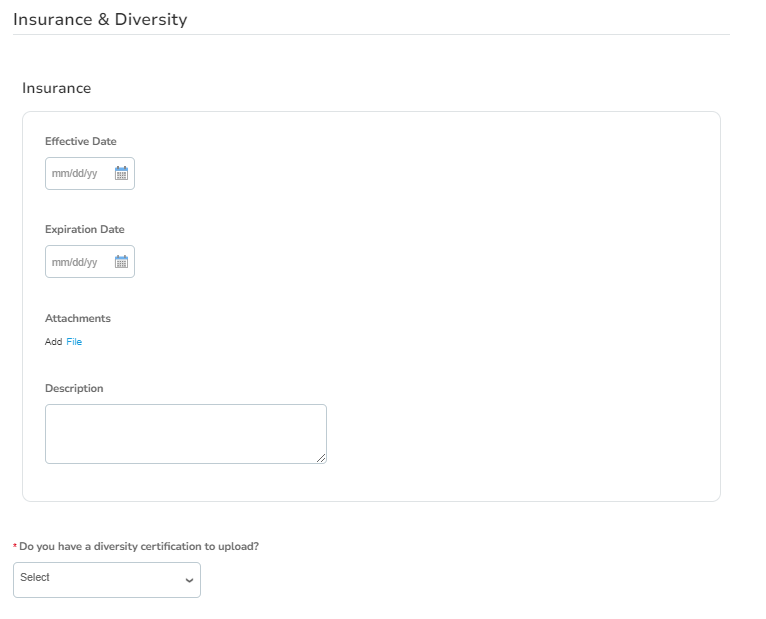
Insurance and Diversity
Do you have an insurance or diversity certificates to upload? If so, select “Yes” and upload any insurance (COI) and diversity certificates in their corresponding section. If not, select “No”.
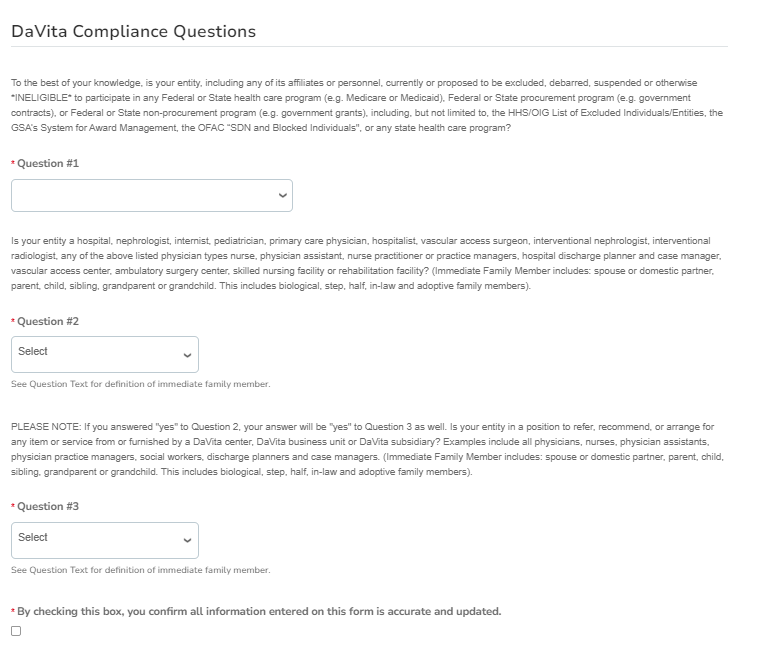
DaVita Compliance Questions and Attestation
Carefully read and, to the best of your knowledge, answer DaVita’s regulatory compliance questions.
After all information has been entered, check the box indicating all information has been entered accurately.
Submit for Approval
After all company information has been completed, click the “Submit for Approval” button located toward the bottom of the page.
If all required fields have been completed, you will see the request has the status “Pending Approval” at the top of the page.
Note: Once your information is submitted, a reviewal process follows. Please allow time for our supplier setup teams to review your company information. You will need to monitor your email for an approval or rejection notification.
Once your information has been approved, you will receive a confirmation email from Coupa.
Utilizing the Comment Section
If there is any additional information or correction needed, DaVita will leave a detailed comment in the comment section located at the bottom of the Information Requests page. Suppliers will be notified within the Coupa Supplier Portal and via email of these comments.
To respond to the comment, simply type your response and click the “Add Comment” button.
To leave a targeted comment for a specific group or person, you may use the @ symbol to tag the desired recipient(s).
